Service conf.e-science ( Indico ) is a tool for managing events such as lectures, workshops, projects or conferences.
Registration of participants for conferences or webinars shall be carried out by a party
https://conf.e-science.pl/ This way of organising the meeting allows local management of the participants' personal data, providing the required information clauses, posting materials, creating agendas, surveys and others.
In the first step you should create an account in the service using your account login
E-SCIENCE.PL ,
eduGAIN (international interfederal service connecting federations dealing with research and educational identity) or by selecting a button
Wrocław University of Technology (Active Directory).
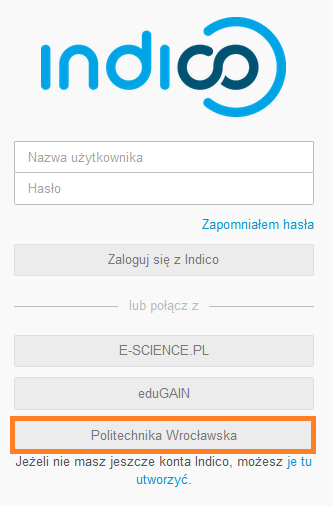
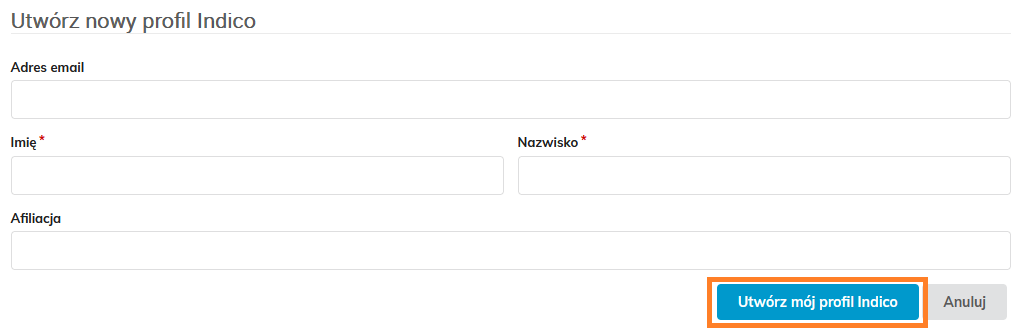
When you choose to log in with the button of the Wroclaw University of Technology, please log in with AD data. A page will appear with creating a new Indico profile. The field with an email address will be filled in automatically with the address in the PWr domain. The fields with an asterisk should be completed with a name and name (after clicking on these fields the data will be visible, just select them). Then click the button. Create My Indico Profile .
To create an event you should contact the administration
conf.e-science at the e-mail address
zdalne@pwr.edu.pl and provide the following information:
- Event title
- Date and time of start and end of the event
- Name, e-mail of the event organizer
After granting the rights to the event on conf.e-science The organizer will receive a link to it. He will have access to the entire event and will be able to manage it (editing, admin, user registration, surveys, reports).
Here are the features and possibilities of editing two types of events:
- Lectures/ Projects/ Workshops
- Conferences
To edit the created event, use the link obtained from the organizer. On the right side of the screen or on the top there is a pencil icon. This field is used for editing the event ( Edit Event ).

The following steps show the editing of general events settings in the tab Settings .
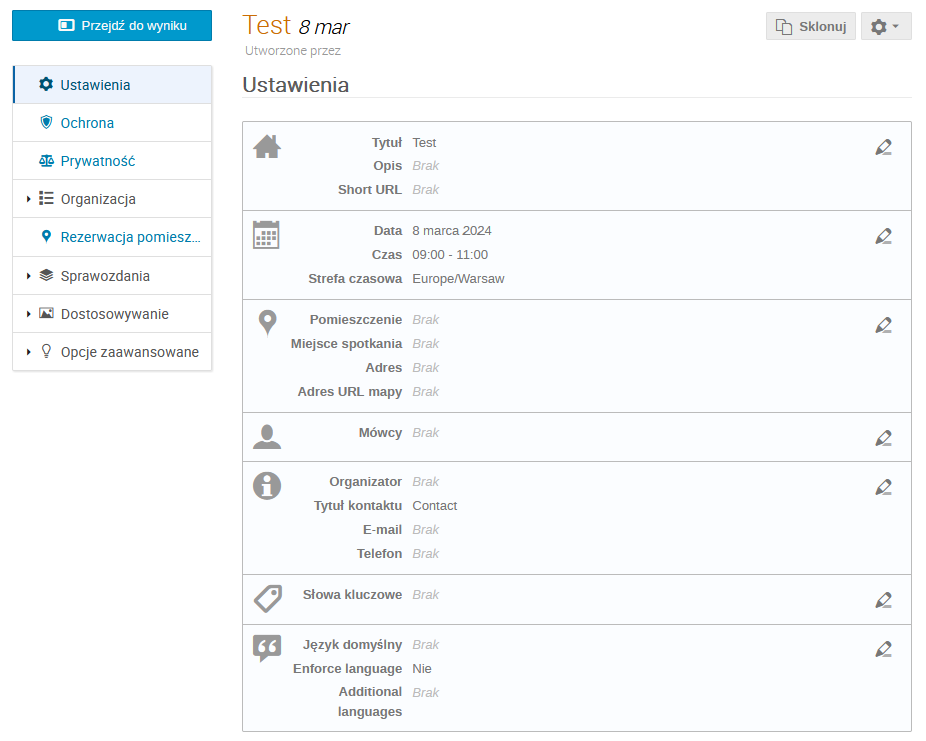
All changes in basic information should be made after pressing the pencil icon on the right side of the screen with the selected group.
Field Editing:
- Title The title of the event, optionally a description of the event;
- Date, Time, Time zone the date and time of the start and the end of the meeting;
- Location of the event In the case of online events to be missed;
- Speakers In this field, speakers should be added.
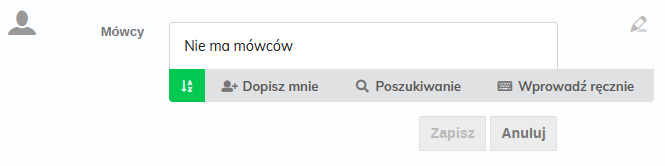
Please provide the most important information: name, surname and e-mail address. In the above window you can find people who have an account Indico or add the speaker (in the window below).
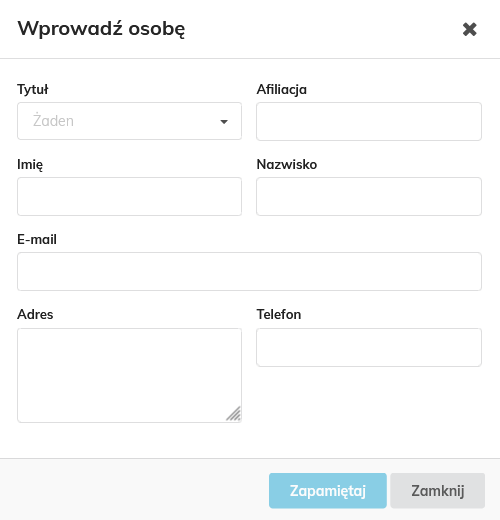
- Organizers Information about the organizers of the event and contact in case of problems (e-mail/telephone);
- Keywords Optionally, keywords events.
- Language
Remember to save new settings for each change you make.
In order to start the registration of participants, select the tab Organisation , and then Participants Click Create .

The registration may be opened (setting the start/end date and time and the final date of the modification (if different from the end) of the registration) or closed ( Close Now ) at any time, it can also be reopened ( Open up now ) and set start/end dates ( Change Date ).
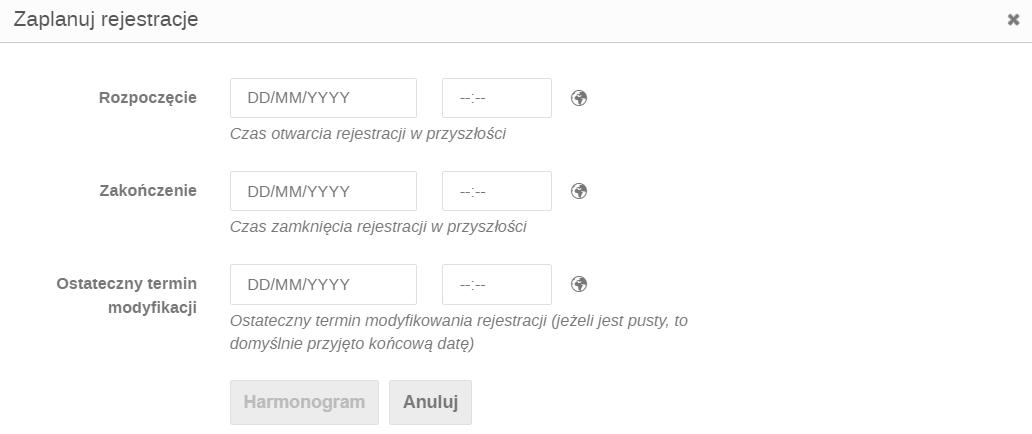
The details of the registration should then be set.
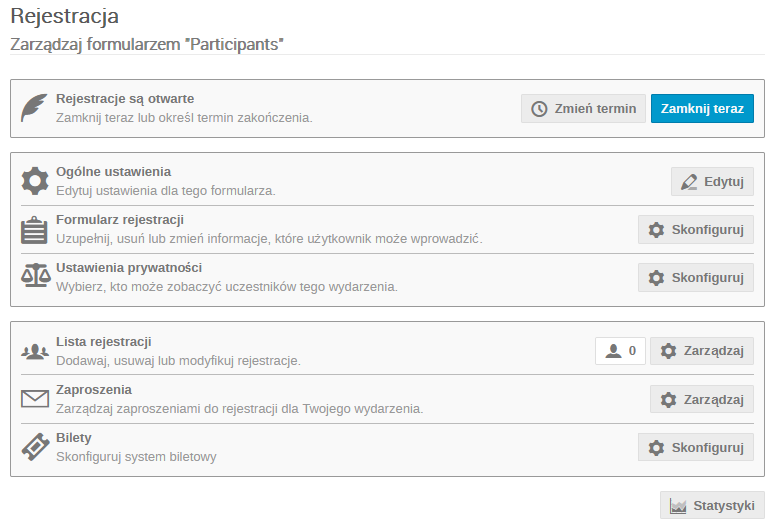
If you want to include registration approval, enter the tab Organisation ---> Participants ---> General settings ---> Edit and tick the option Moderated , then save the changes.
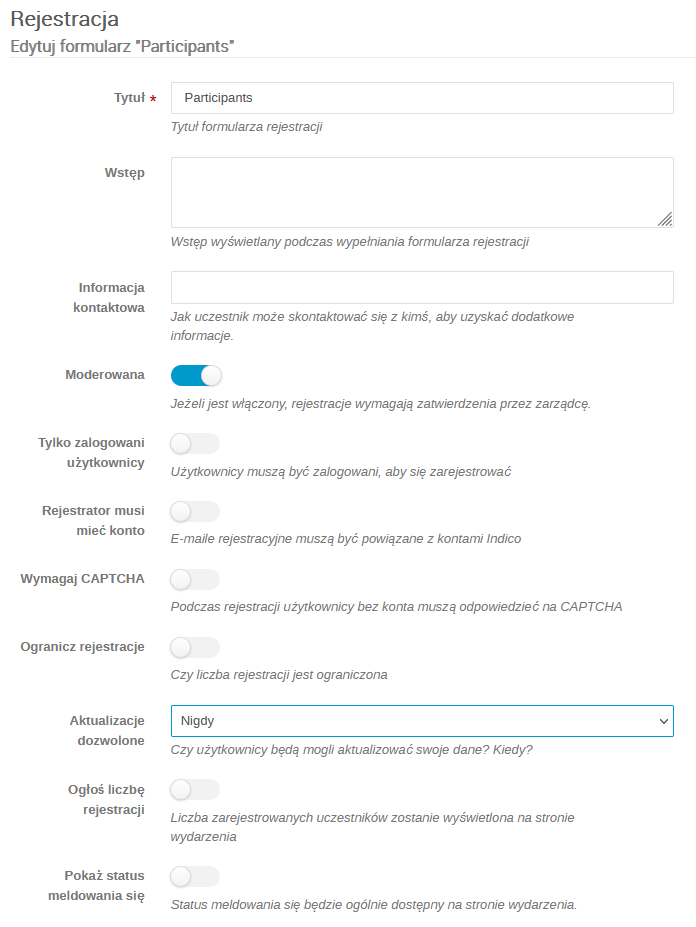
To modify the registration form, press the box Configure There will be a window visible below:
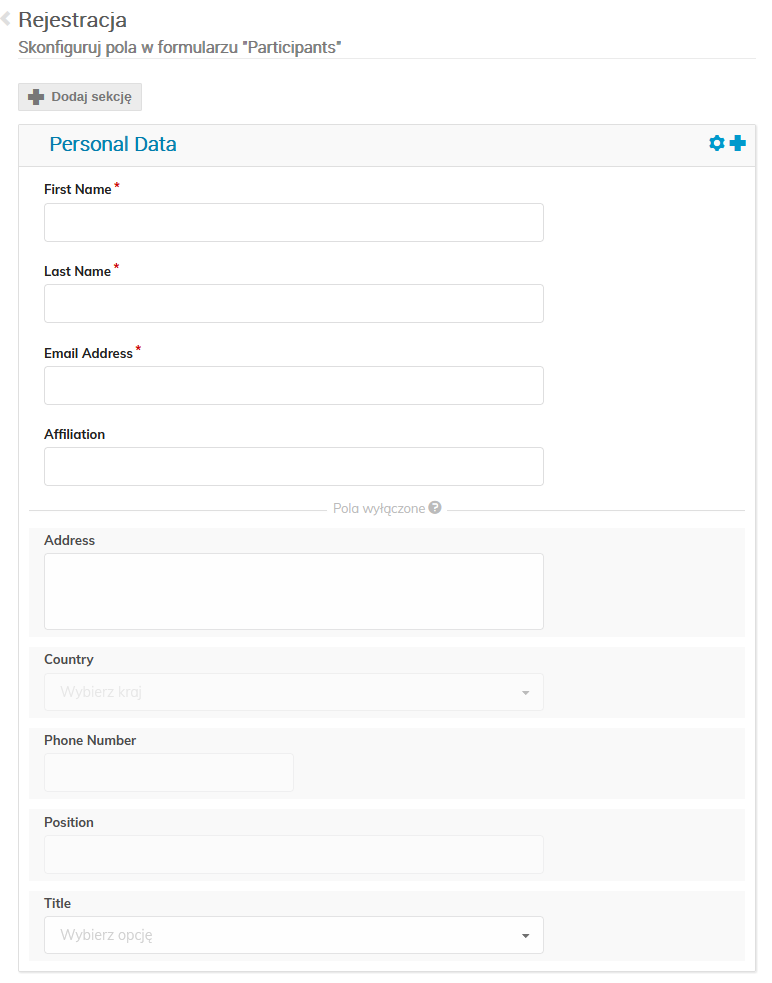
Please note that in order to add a field with a GDPR information questionnaire to the registration form, this field must be mandatory (selecting the option) Mandates/Required You will receive such a questionnaire in an e-mail with a link to the event. Each field can be edited using the screw button on the right side of the screen.
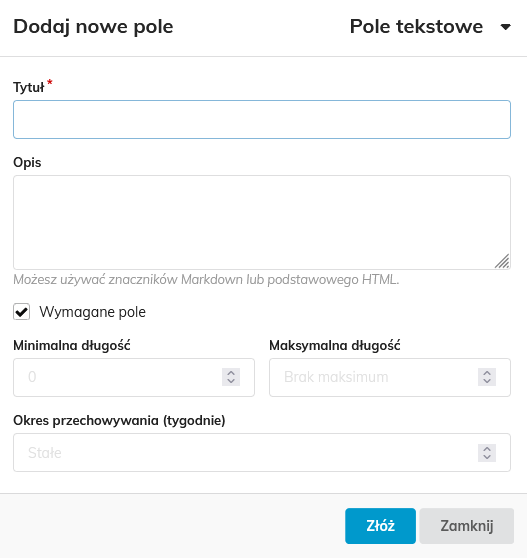
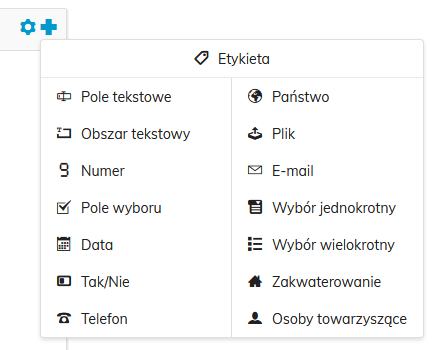
You can also add any field from the list that must appear in the registration.
To read the list of persons registered for the event, please beside the field Registration list Press Manage At this button there is also a preview of the number of registered persons.
And then there's the fields:
- Customize List The following shall be discussed:
- Register (New user, Indico user, Many Indico users) The relevant persons may be registered for the event;
- Remove removal of selected persons from the list;
- Export export the list of participants to the format e.g. PDF;
- Import import of the list of participants to the event;
- Action The most important option here is Email also described below;
- Moderation An option to approve or reject registrations.
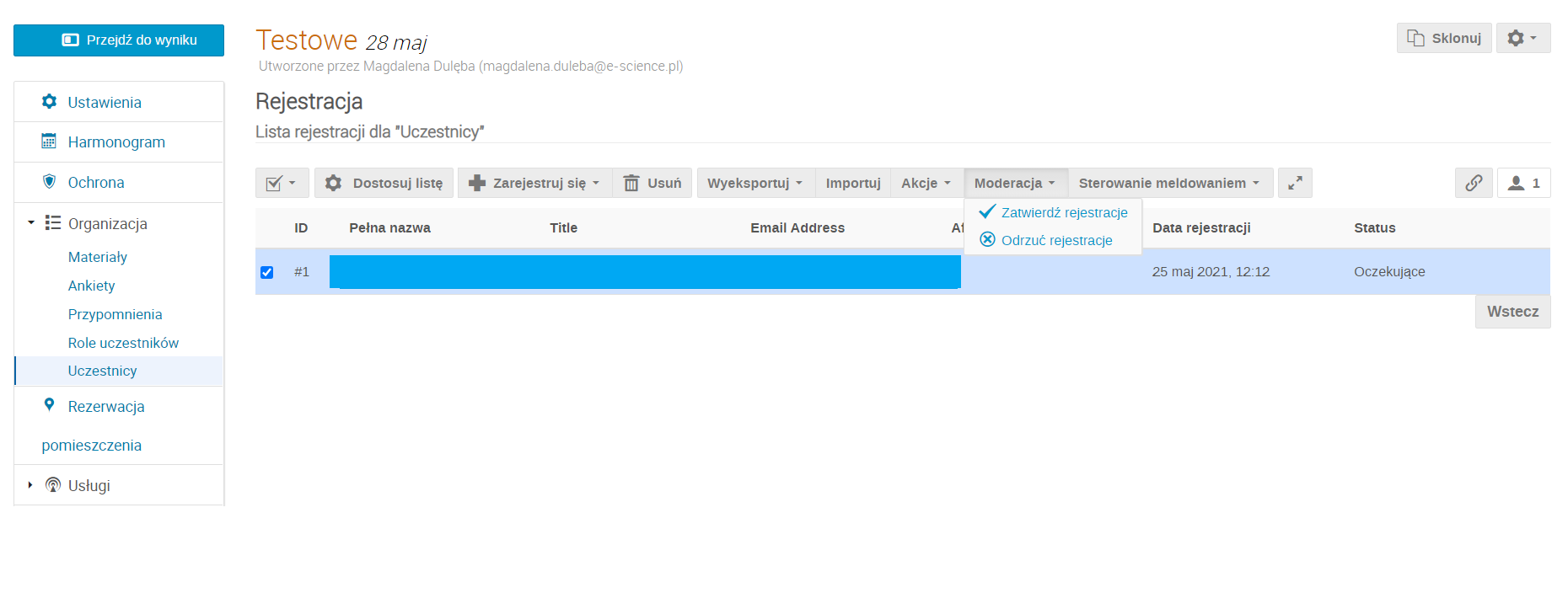
Configure the registration list (under the button) Customize List ) shown below. This option gives you the opportunity to preview the information you selected from the list. It can also be sorted in an appropriate way.
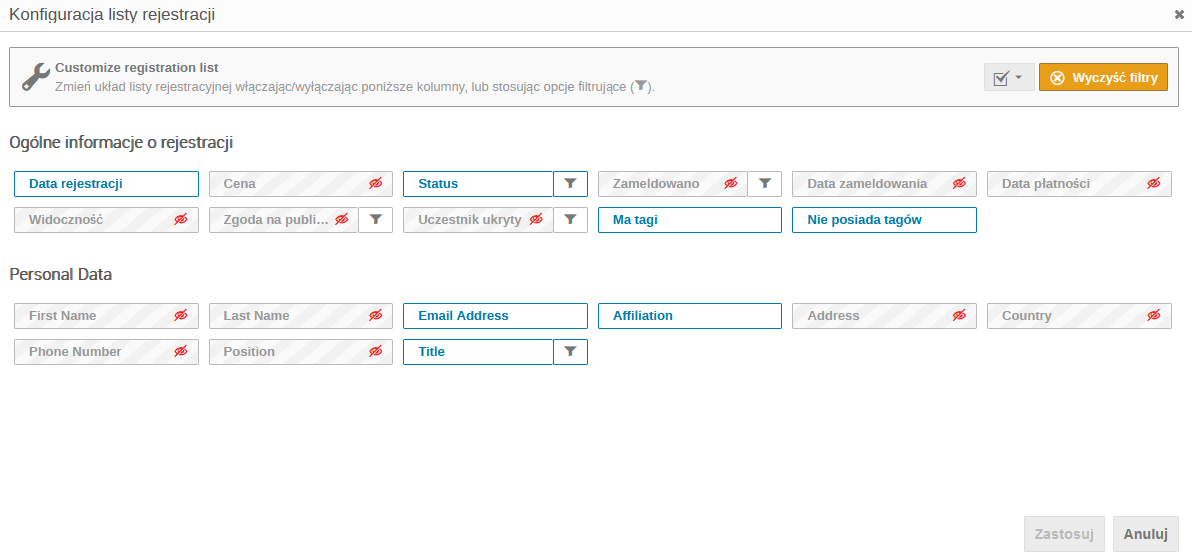
In the tab Actions --> Email it is possible to send an e-mail to all selected people from the list. An e-mail template is available, you can edit it. In the content you should include all the necessary information about the meeting we are planning (e.g. link to webinar).
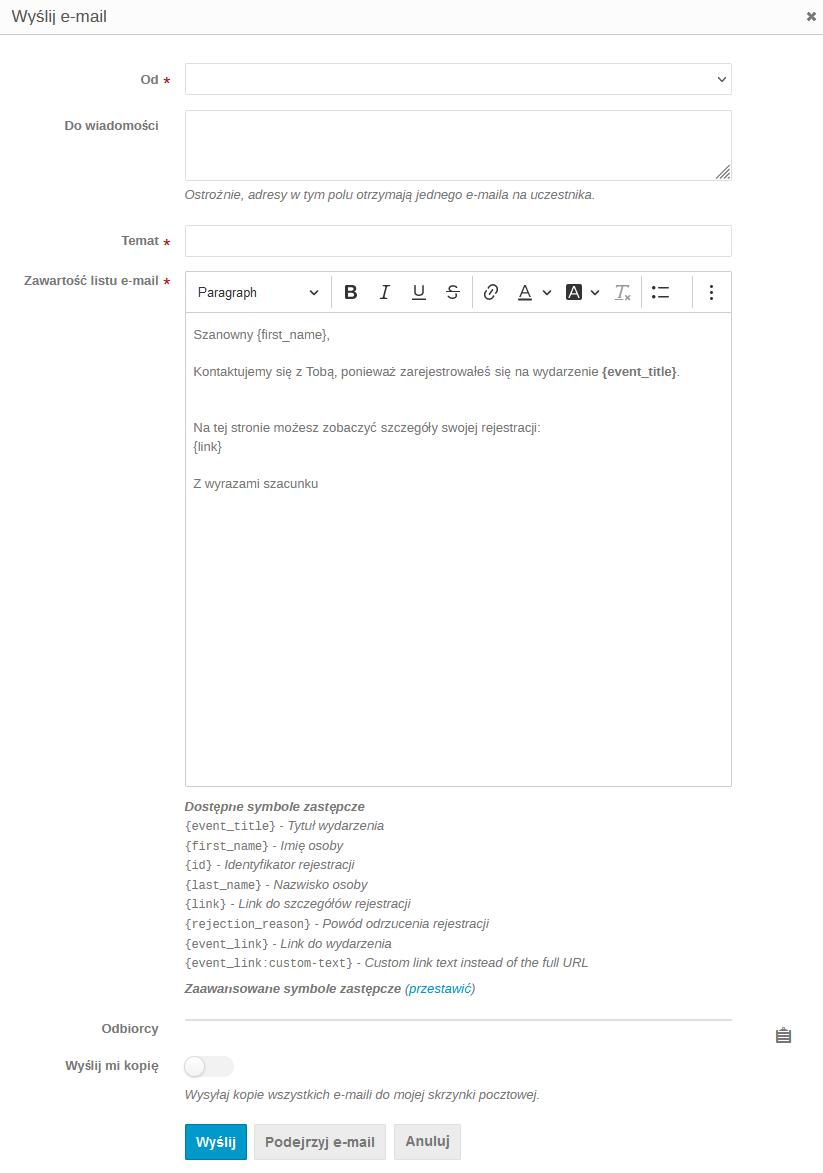
Before sending e-mails to the participants of the meeting, verify the content using the button View e-mail .
W Conf.e-science there is also an option to place the materials needed for the organized event (before, during and after the event). Organisation , and then Materials You can add single files, links or a compressed ZIP file.
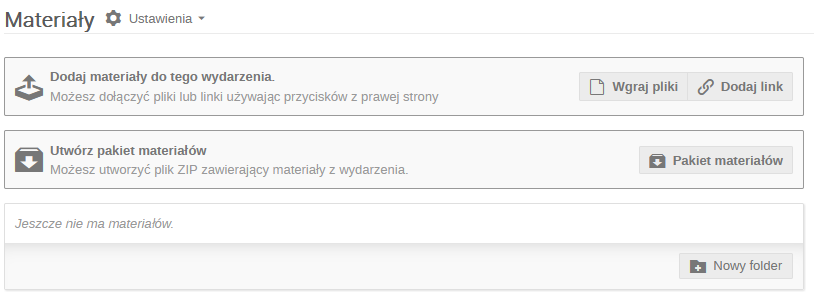
In the tab Reports -> Logs you can check all the shares that were taken in this event, also whether a given email has been sent to the participants. You can also add surveys or reminders in the tab Organisation .
To edit the conference, click the button at the top of the screen (presenting the pencil) Go to the management area of this event .
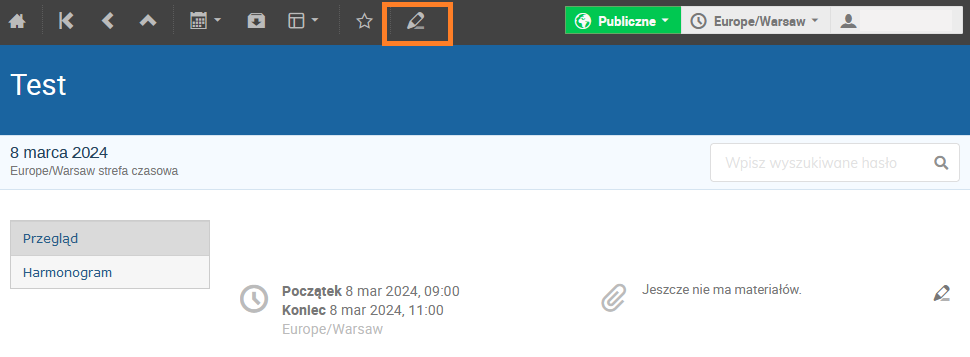
The following steps show the edition of the general conference settings. Settings .
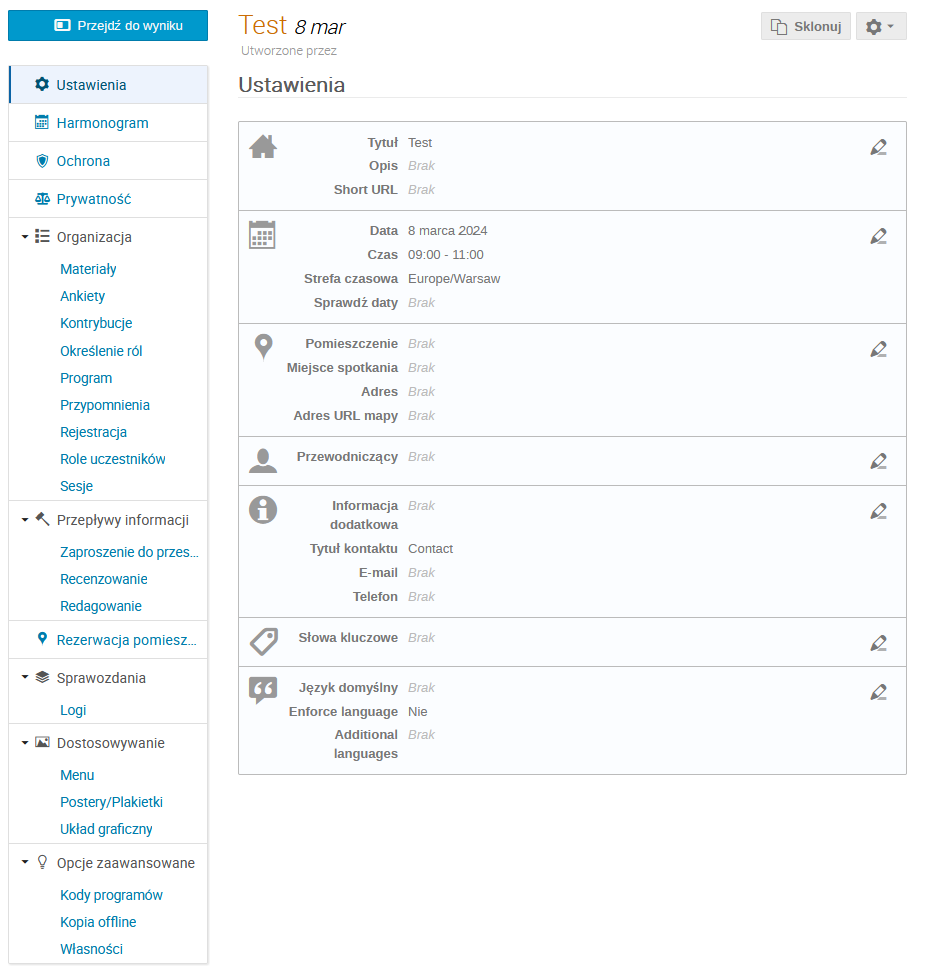
All changes to the basic information should be made to the page Settings after pressing the icon with the pencil on the right side of the screen, with the selected group.
Field Editing:
- Title The title of the event, optional description of the event
- Date, Time, Time zone, Check dates Date and time of start and end of the meeting
- Place In the case of online events to be missed
- Moderator In this field you should add speakers
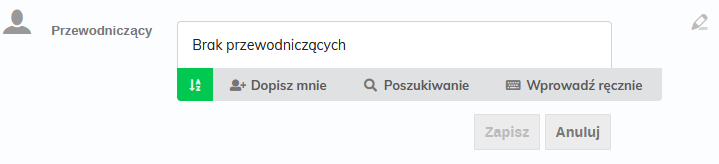
Please provide the most important information: name and e-mail address. This way you can find people who have an account Indico or add the speaker manually.
- Additional information Information about organizers of the event and contact in case of problems (e-mail/telephone)
- Keywords optional, keywords events
- Language
Remember to save new settings for each change you make.
To create an event schedule, click Schedule .
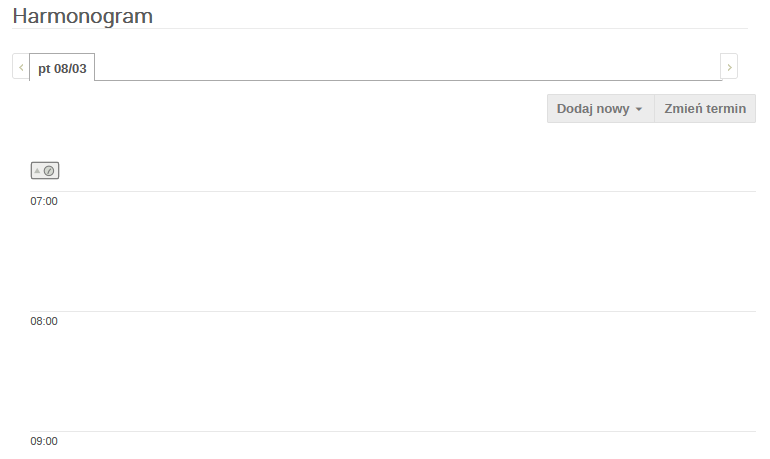
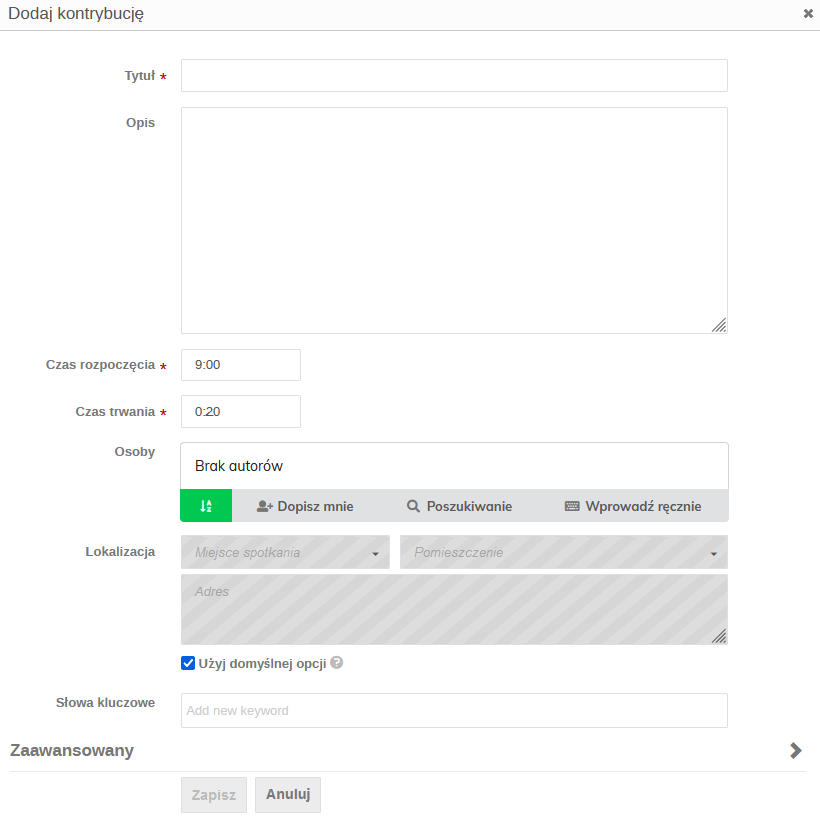
All dates of the scheduled conference will appear there. In order to add further points of the event, click Add New . You can select session block, lecture ( Contribution ) or a break. Fields required to be filled are: Title , Start time and Duration .
In order to start the registration of participants for the conference, select a bookmark Organisation , and then Registration .
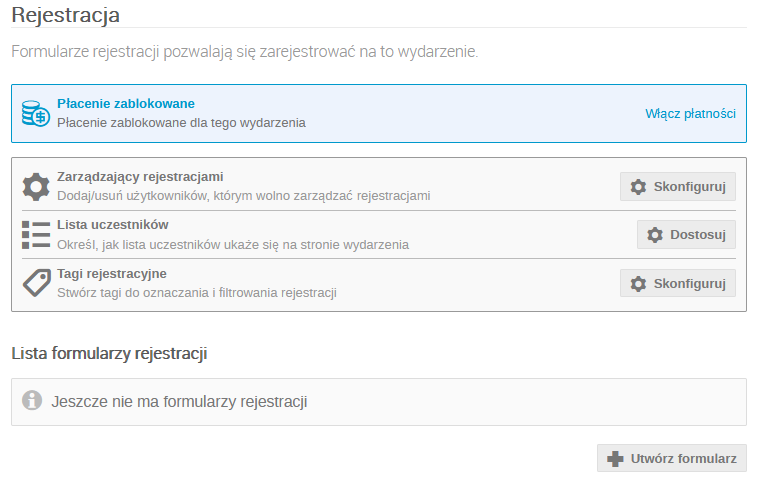
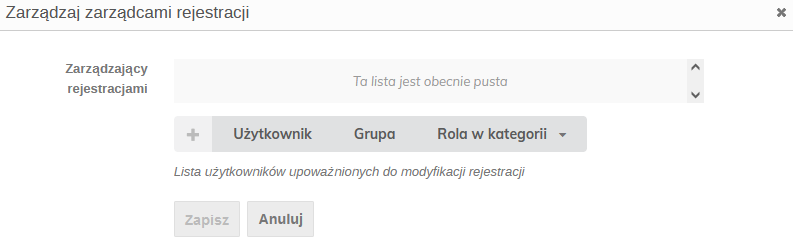
In case of registration for the conference, first add the persons managing the registration of the field Registration managers , press Configure , there will appear a window with adding people (they must have an account Indico ).
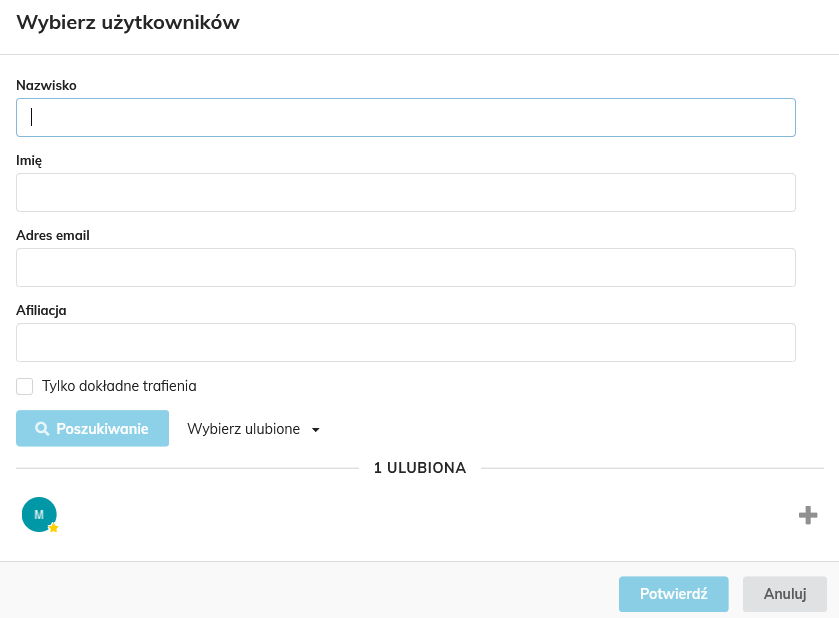
In order to create registration in the field List of registration forms Press Create Form , add the title of registration ( Title ). The registration can then be opened ( setting the start/end date and time and the final date of the modification (if different from the end) of the registration ) or close ( Close Now ) at any time, it can also be reopened ( Open up now ) and set start/end dates ( Change Date ).
The details of the registration should then be set.
If you want to include registration approval, enter the tab Organisation ---> Registration ---> List of registration forms ---> Manage ---> General Settings ---> Edit . And tick the option Moderated , then save the changes.
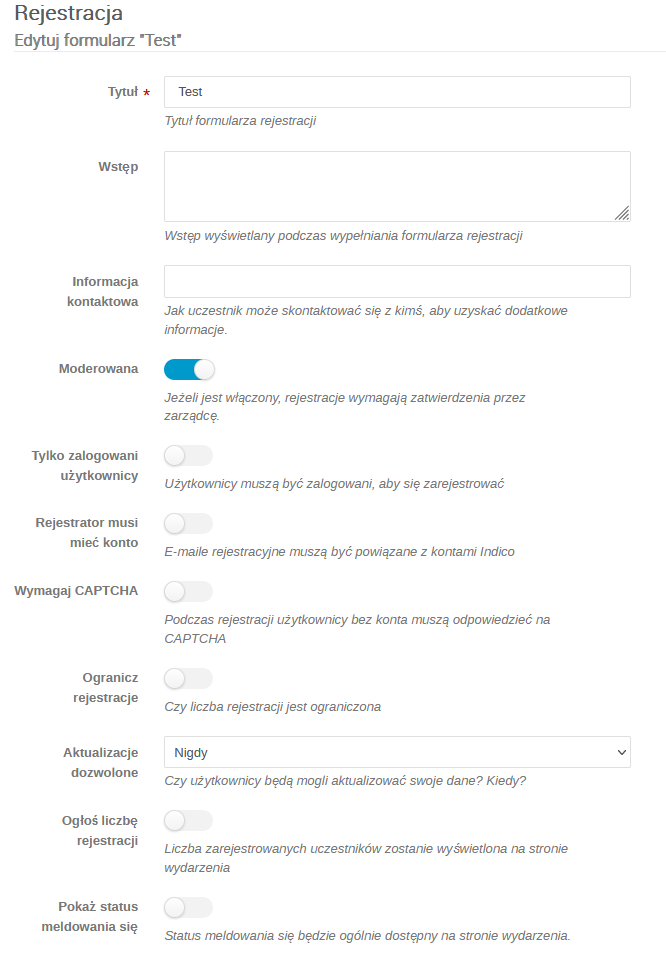
To modify the registration form, press the box Configure There will be a window visible below:
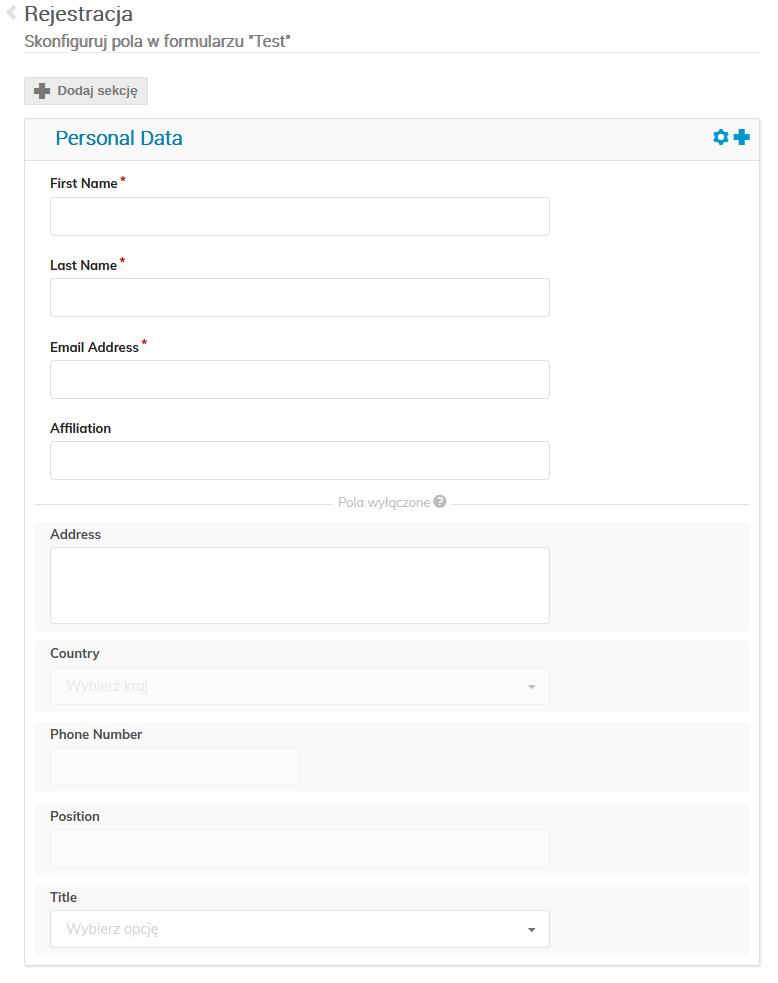
Please note that a field with a GDPR information questionnaire should be added to the registration form, this must be a mandatory field (selecting the option) Mandates/Required You will receive such a questionnaire in an e-mail with a link to the event. Each field can be edited using the screw button on the right side of the screen.
You can also add any field from the list that must appear in the registration.
To read the list of persons registered for the event, please beside the field Registration list Press Manage At this button there is also a preview of the number of registered persons.
And then there's the fields:
- Customize List The following shall be discussed:
- Register (New user, Indico user, Many Indico users) The relevant persons may be registered for the event;
- Remove removal of selected persons from the list;
- Export export the list of participants to the format e.g. PDF;
- Import import of the list of participants to the event;
- Action The most important option here is Email , also described below.
- Moderation An option to approve or reject registrations.
The configuration of the registration list is shown below. This option gives you the opportunity to preview selected information from the list. It can also be sorted in an appropriate way.
In the tab Actions --> Email it is possible to send an e-mail to all selected people from the list. An e-mail template is available, you can edit it. In the content you should include all the necessary information about the meeting we are planning (e.g. link to webinar).
Before sending e-mails to participants of the meeting you should verify the content, use the button View e-mail .
W Conf there is also an option to place the materials needed for the organized event (before, during and after the event). Organisation , and then Materials You can add single files, links or a compressed ZIP file.
There are many other conference management options, including adding: surveys, reminders, lectures (contributions), session blocks, events programs and other bookmarks Organisation In the tab Information flow there is the management of abstracts at the conference (transmitting, editing, review). Reports -> Logs you can check all the shares that were taken in this event, also whether a given email has been sent to participants.
To find out about other functionalities or if you have problems, please contact your admins at: zdalne@pwr.edu.pl .