It is possible to obtain a certificate within the PIONIER consortium. The following certificates can be applied for:
- GEANT IGTF-MICS Robot Personal
- GEANT Personal Certificate
- GEANT IGTF-MICS Personal
Below are instructions for downloading certificates and how to add them to postal clients, browsers and systems.
¶ Downloading your personal certificate
- To download a personal certificate, you should visit the website https://cert-manager.com/customer/PSNC/idp/clientgeant

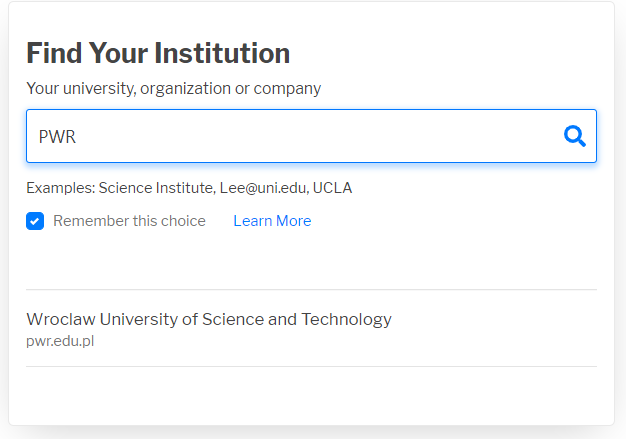
- In the search field of the institution enter: PWr or Wroclaw University of Science and Technology (letter case and Polish characters do not matter). Then select Wroclaw University of Science and Technology .
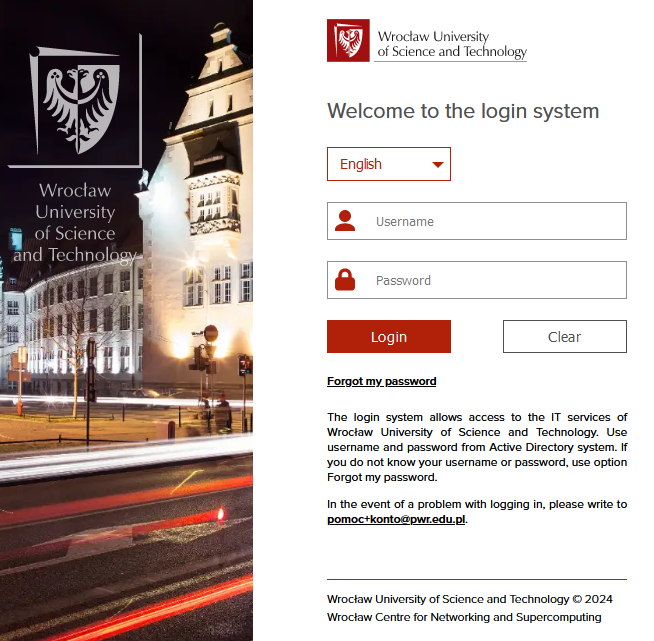
- Log in to the Wrocław University of Science and Technology authentication server website using your AD credentials. If problems arise, use New authentication system .
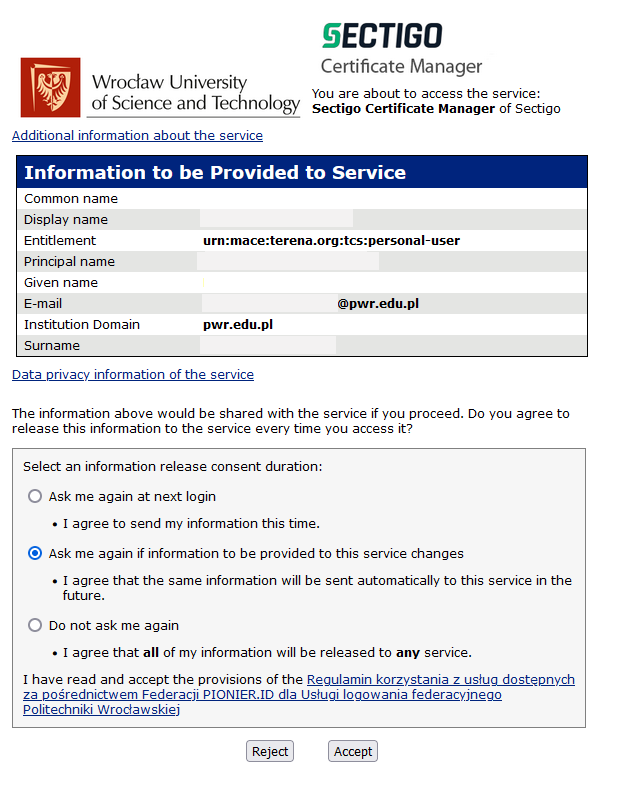
- Then you will see the data shared to the service. After reading the Regulations, you should decide how long the system should remember the consent (one of the 3 options) and grant access permissions. If consent is not given, the operation will be terminated.
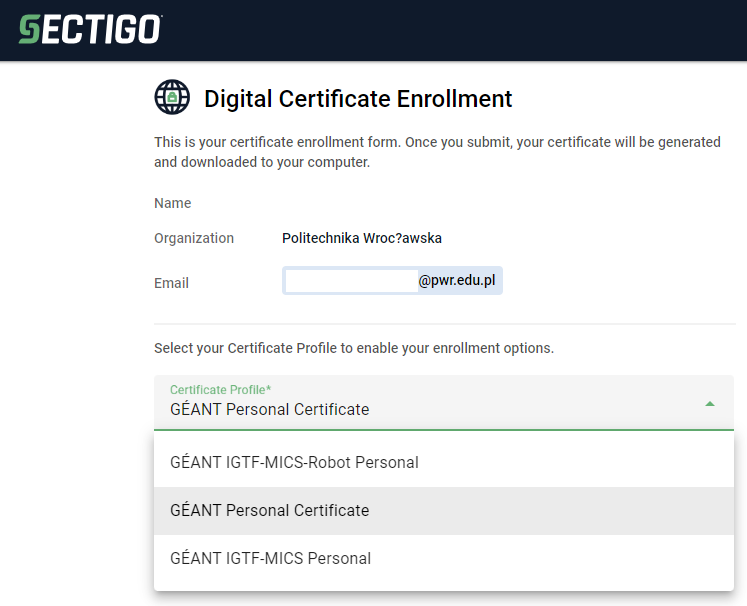
- To download the certificate and key, select GEANT Personal Certificate from the list. Personal Certificate is used to encrypt and digitally sign e-mails and some documents (non-PDF).
- Then set the certificate validity period (depending on the type of certificate). Possible options are 365, 730 or 1095 days.
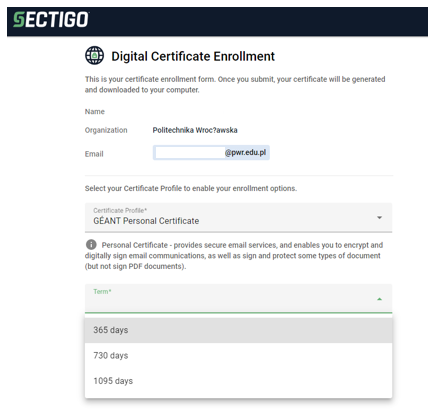
- In the Enrollment Method option, select Key Generation.
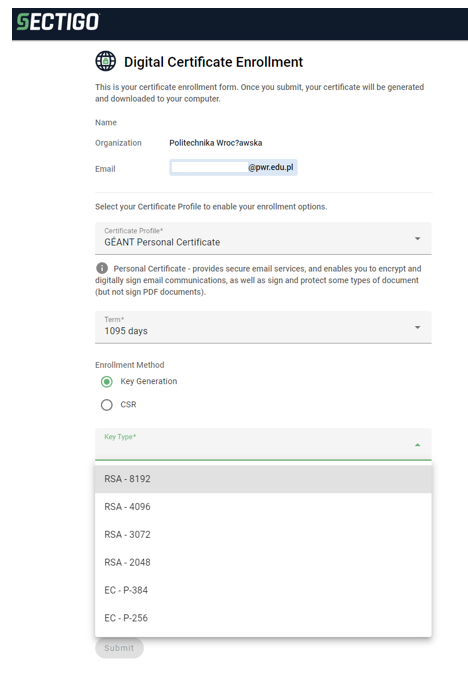
- Select RSA - 2048 key, it is compatible with most tools. Set a password to protect the downloaded file. To start downloading, you must read and accept the terms of the EULA, then click Submit .
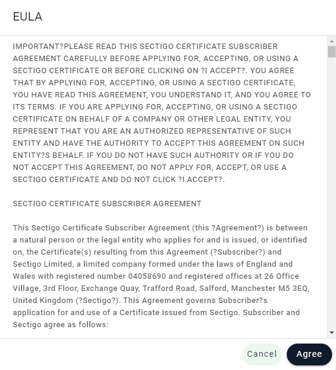
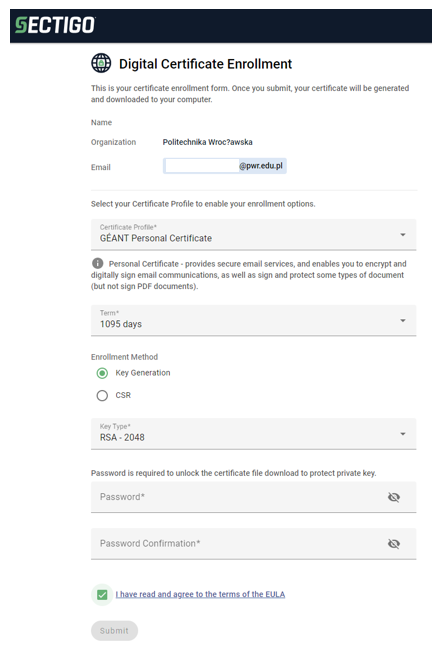
- The file with the key will be downloaded.
¶ Loading into the postal program
¶ Outlook
To attach a personal certificate to the Outlook, follow the instructions below.
- In the first step, enter Outlook, then press File, select Options, then Trust centre and Trust Centre Settings....
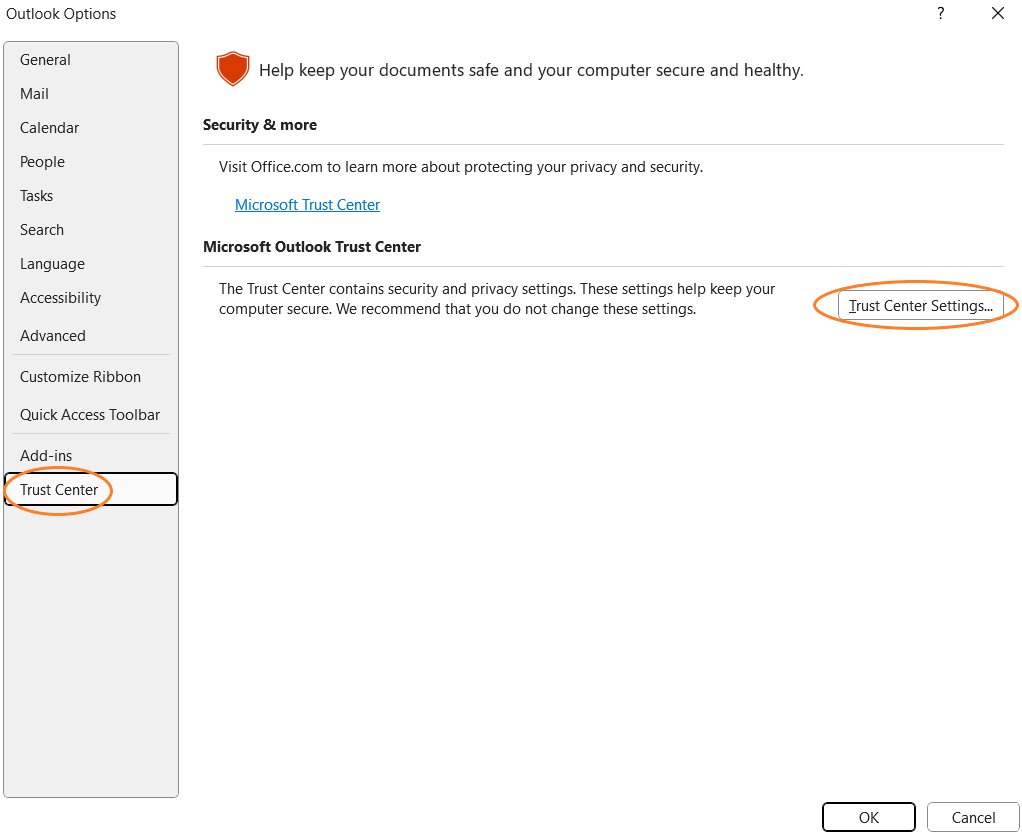
- In the next steps, press E-mail Security. In the Digital IDs (Certificates) field, click Import/Export .
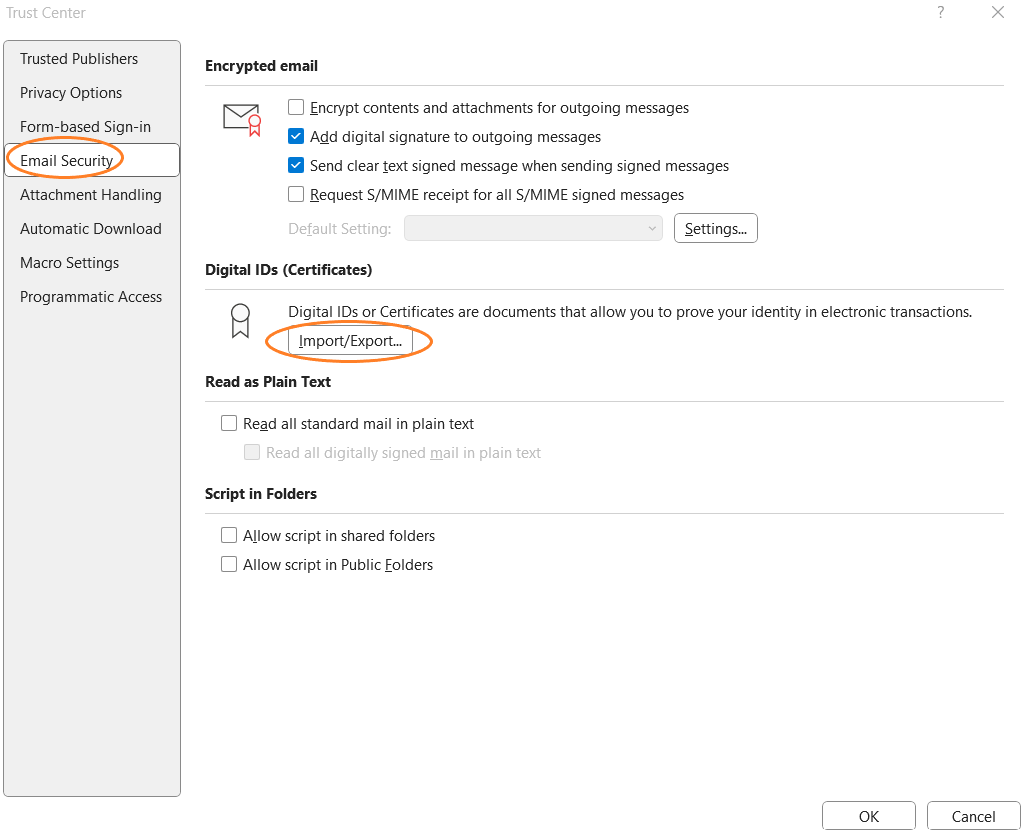
- In the Import existing digital ID from a file field, click Browse, select the downloaded personal certificate and enter the password.
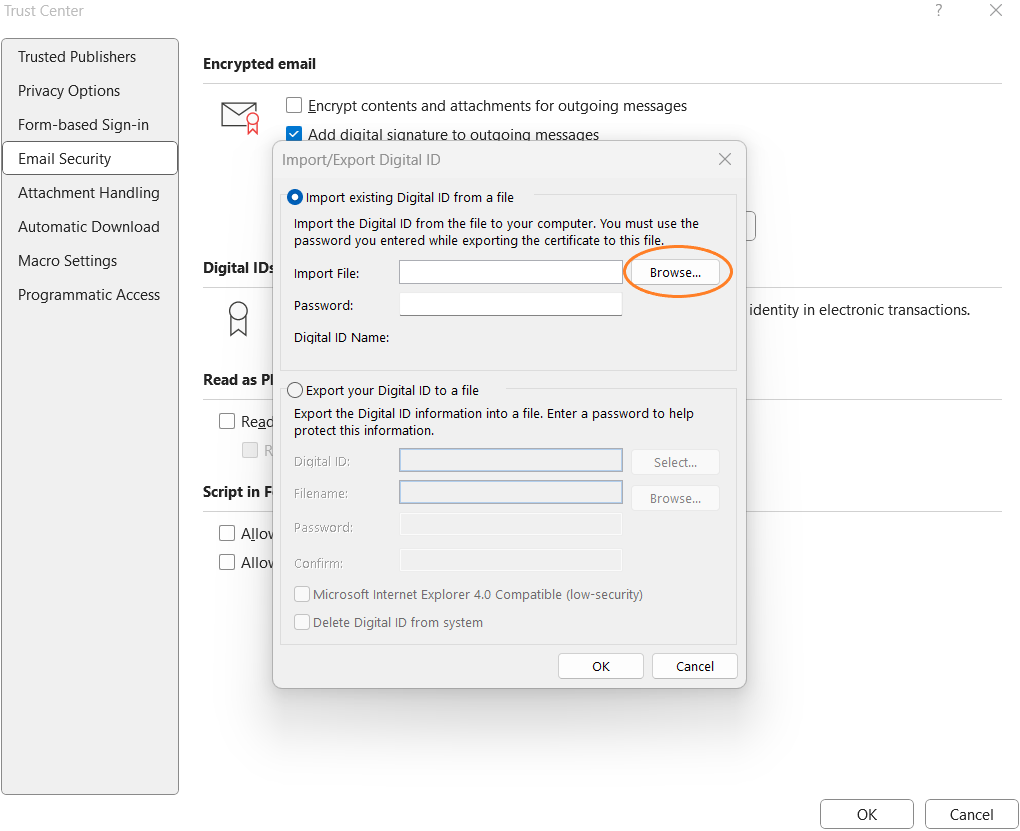
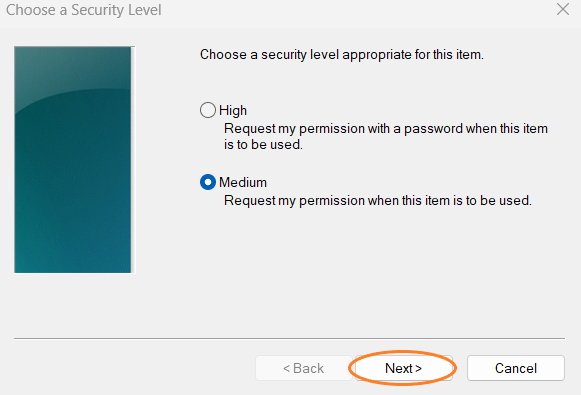
- After pressing the OK button, a window with a protected item will appear. Please select a security level. Set the security Level... to medium or high.
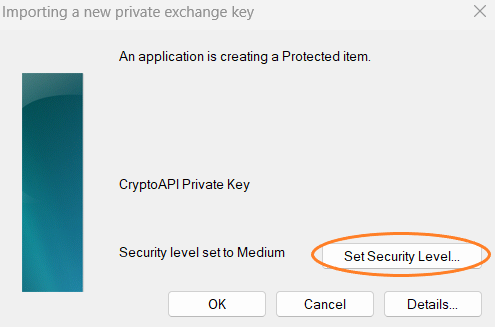
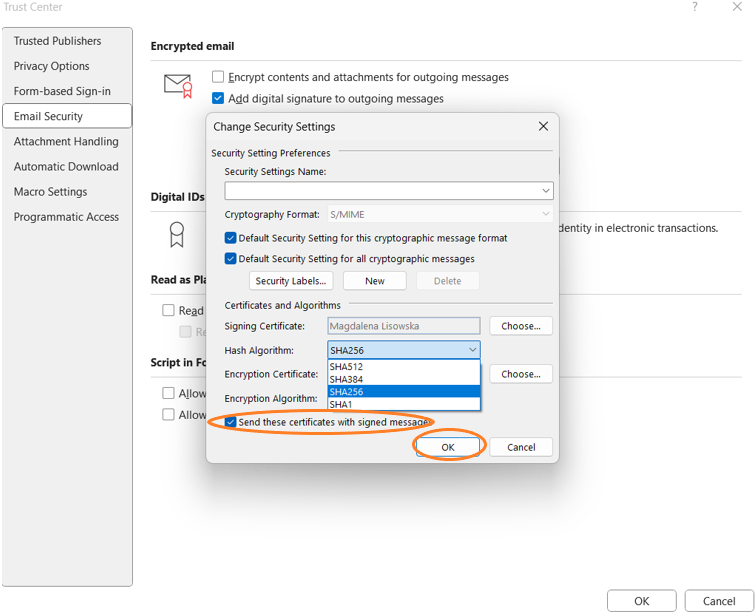
- Enter Default Settings, then Settings.... The Change Security Settings window will appear and you should change the Hash Algorithm to at least SHA256 and select the Send these certificates with signed messages option.
- When you first try to send an e-mail secured with a personal certificate, information about the use of the private key will appear. Click Allow.
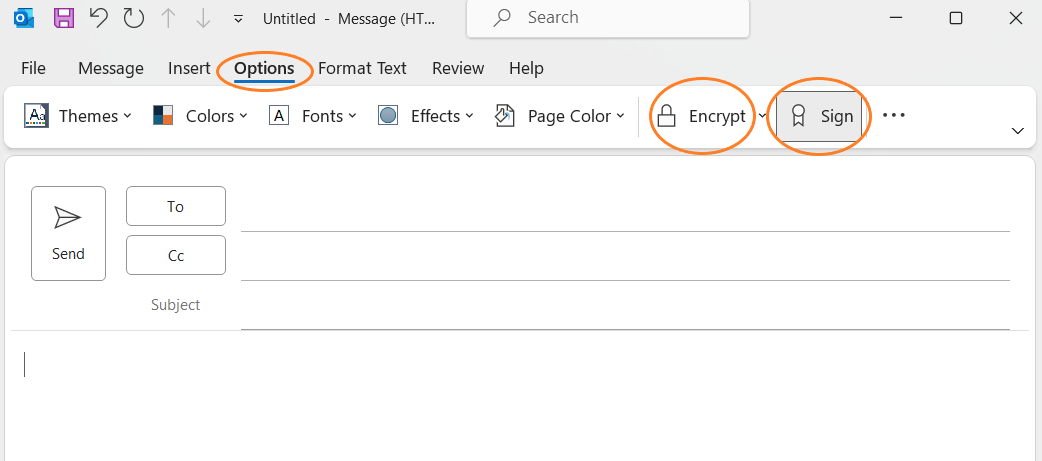
- To attach the signature before sending the message, select Options in the sending window and check Sign. To encrypt the message, you should also press Encrypt.
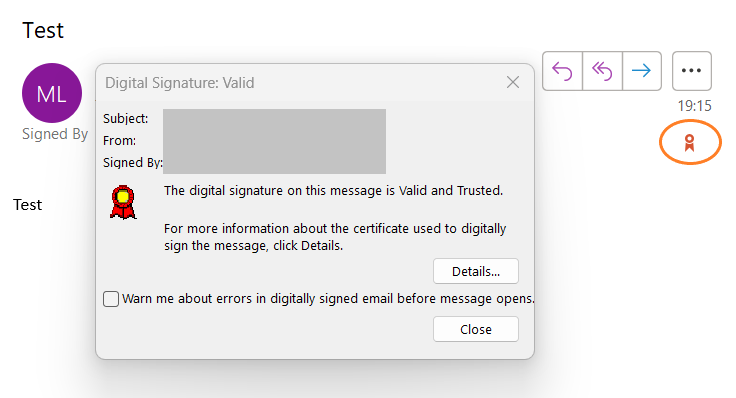
- To check the correctness of the signature in e-mails, see if the certificate stamp is displayed on the right.
¶ Mozilla Thunderbird
-
In the first step, enter Mozilla Thunderbird, then press Menu and select Options.
- Then click the Privacy & security tab. At the bottom of the page there is a Certificates field with a Manage Certificates... button.
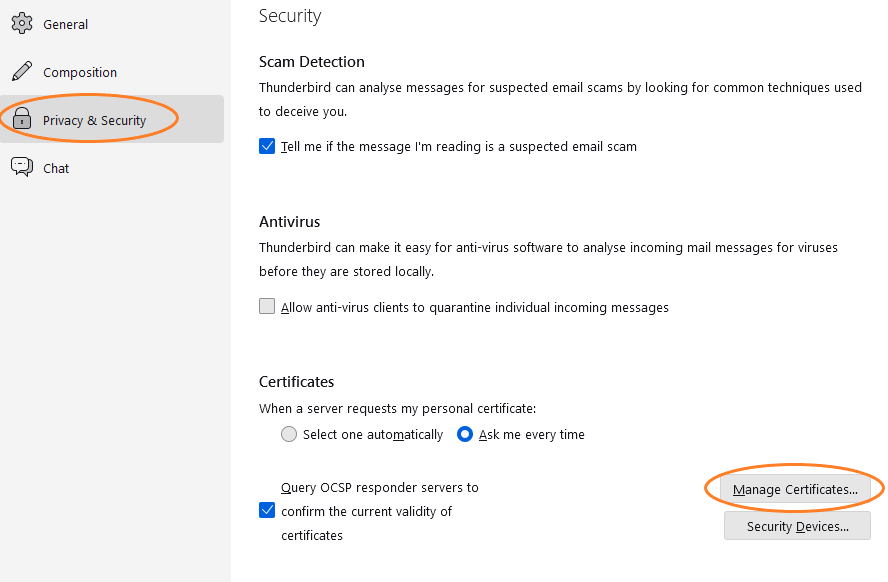
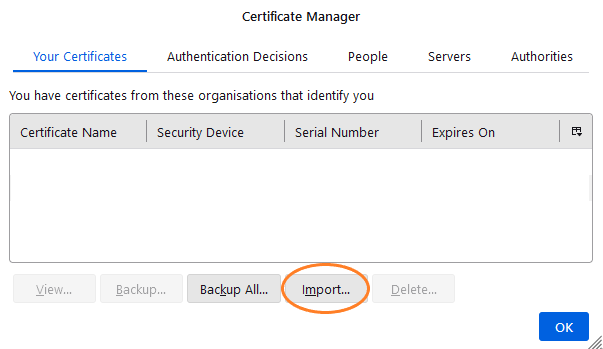
- In the Certificate Manager window, select Import... and attach the downloaded personal certificate.
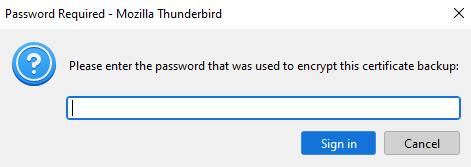
- In the last step, enter the certificate password.
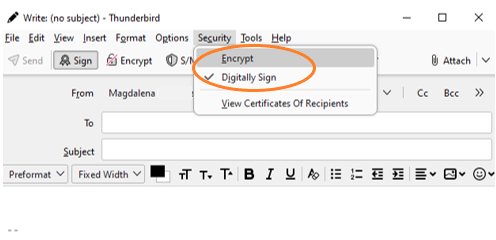
- In order to attach a signature before sending the message, select Security in the sending window and check Sign Digitally To encrypt the message, you should also press Encrypt button.
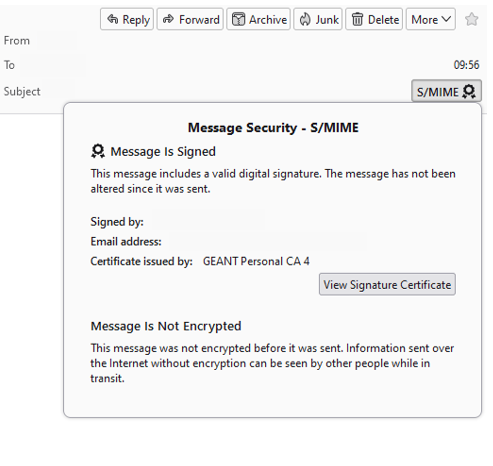
- To check the correctness of the signature in e-mails, see if the certificate stamp is displayed on the right.
¶ Loading into browser
¶ Chrome
To attach a personal certificate to Chrome, follow the instructions below.
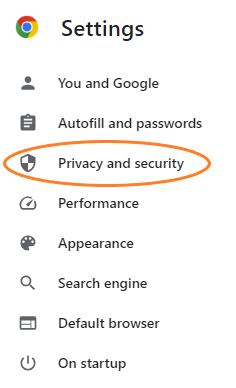
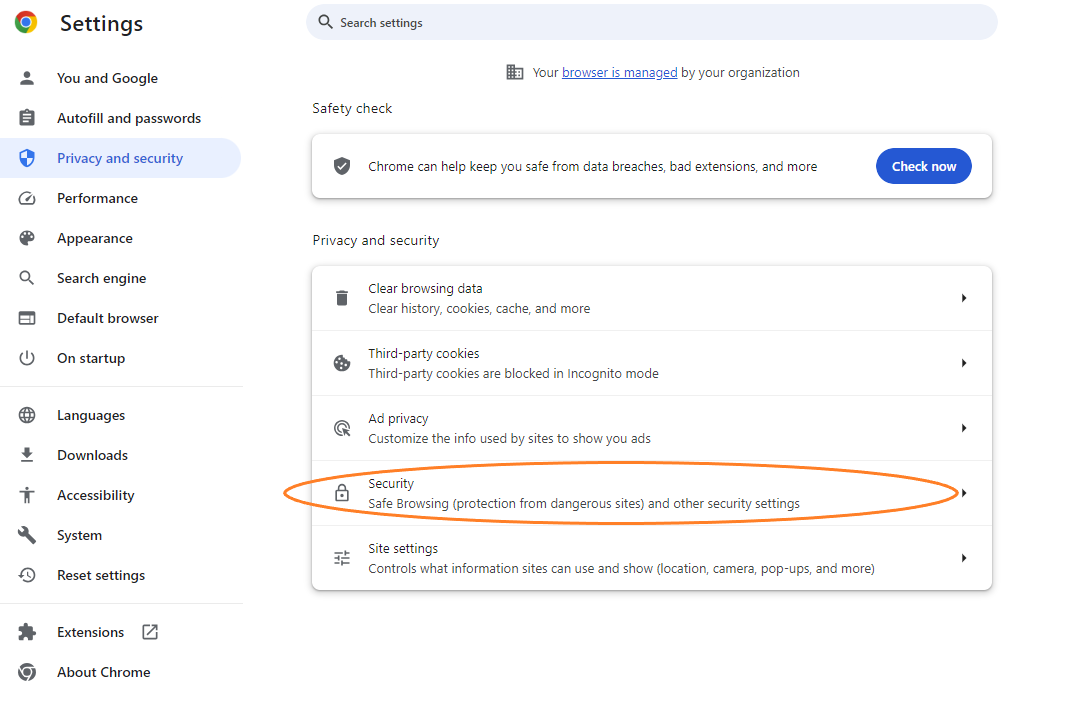
- In the first step, turn on the Chrome browser, then press Menu , select Settings, then Privacy and security and then Security in the displayed list.
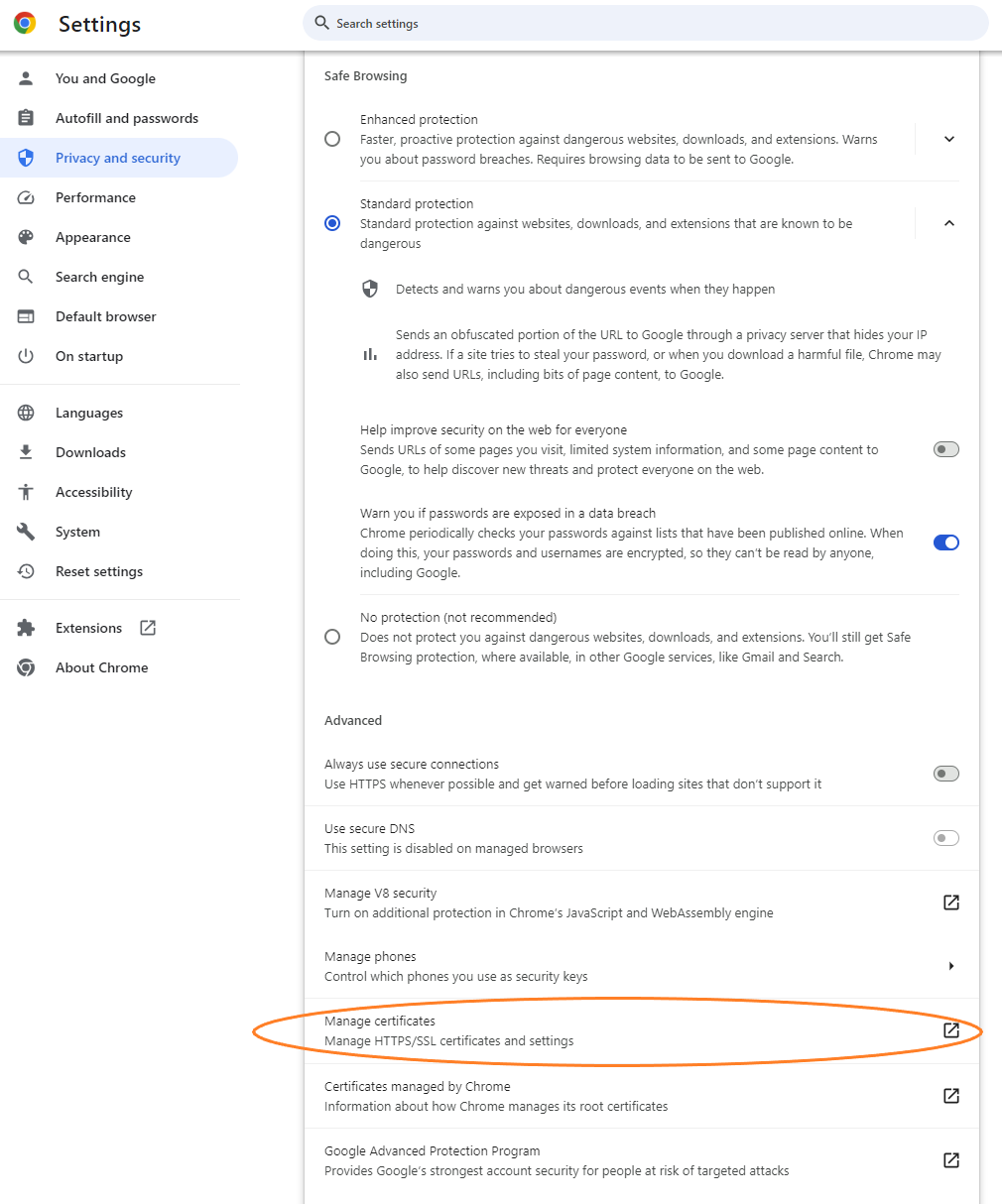
- In the Privacy and security tab at the bottom of the page there is a Manage certificates field.
- In the Certificates window, select Import....
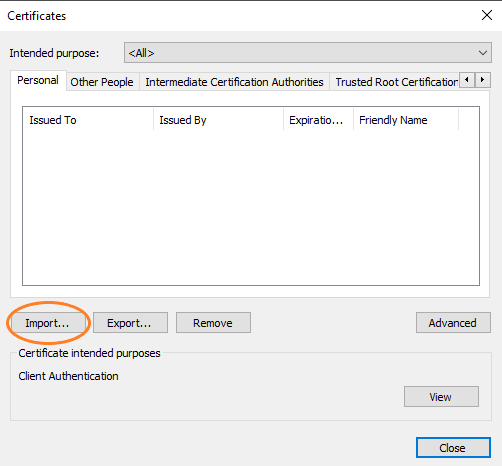
- The Certificate Import Wizard window will open. Click Next.
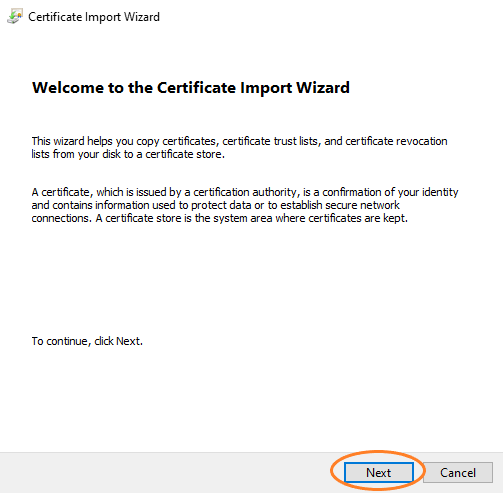
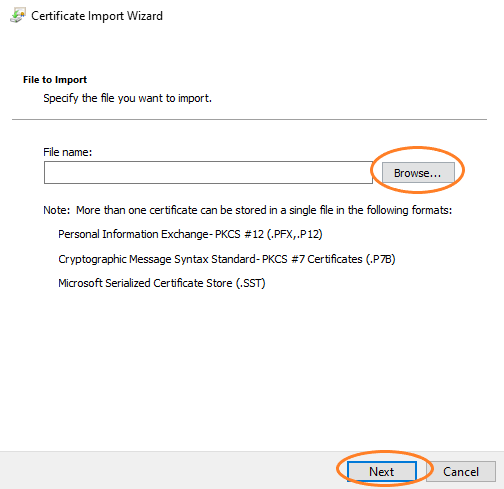
- Then import the file with your personal certificate.
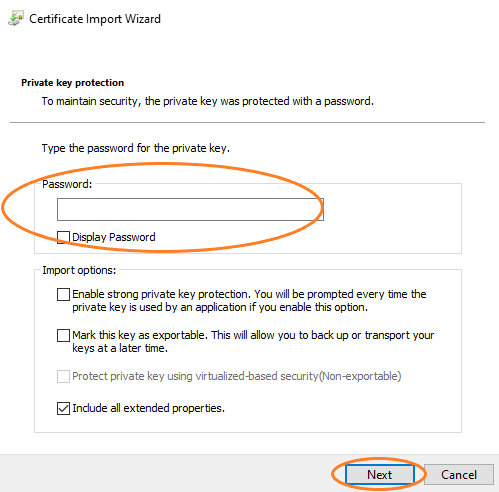
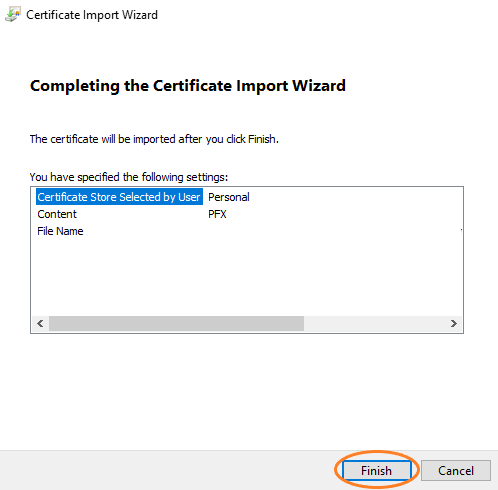
- In the next step, enter your certificate password. You can also select the import option. After selecting, click Next.
- Select the folder where the certificate is to be placed.
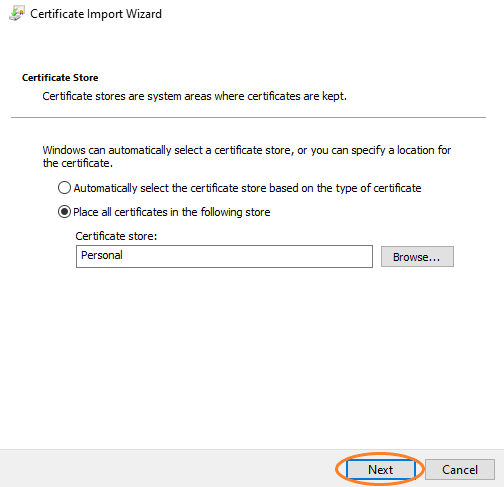
- View of certificate settings.
¶ Firefox
To attach a personal certificate to Firefox, follow the instructions below.
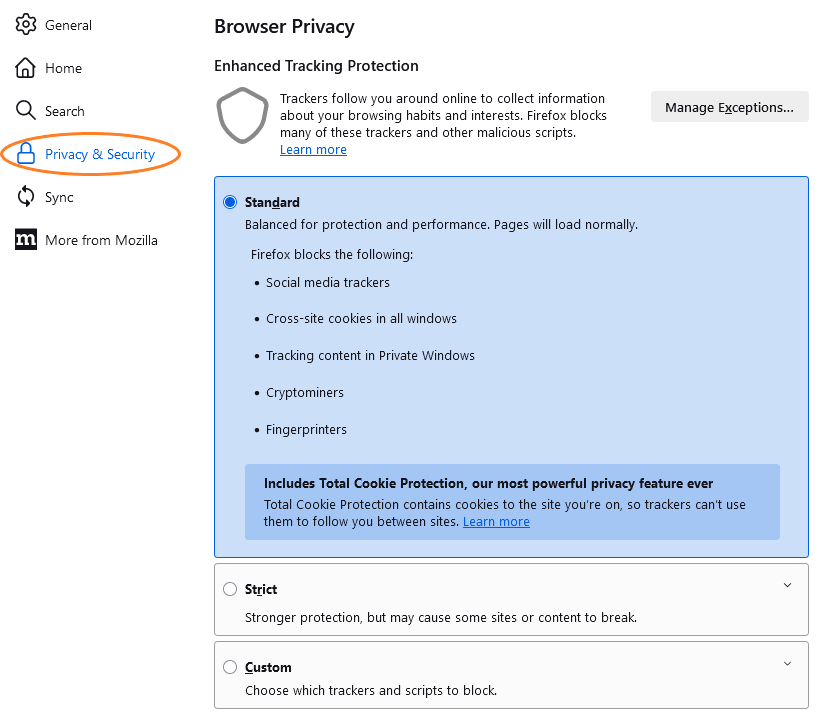
- In the first step, turn on the Firefox browser, then press Menu , select Settings, then Privacy & security.
- In the Privacy and security tab at the bottom of the page is a Certificates field with a View certificates... button.
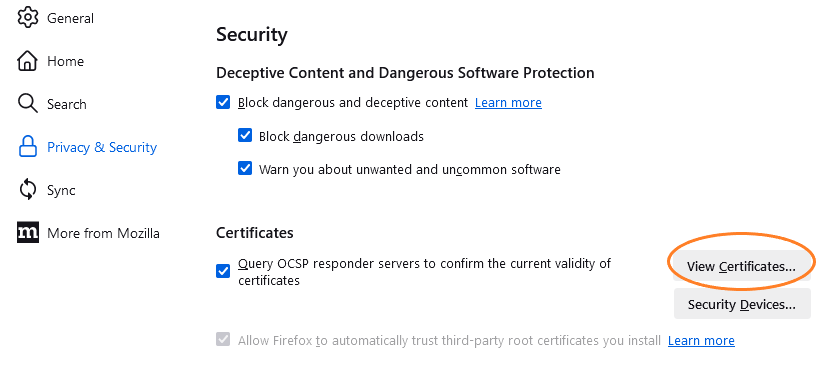
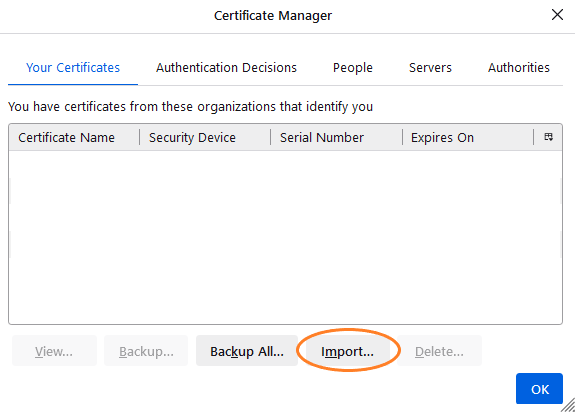
- In the Certificate Manager window, select Import... and attach the downloaded personal certificate.
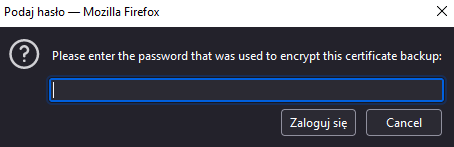
- In the last step, enter the certificate password.
¶ Loading into systems
¶ Windows
To attach a personal certificate to the Windows system, follow the instructions below.
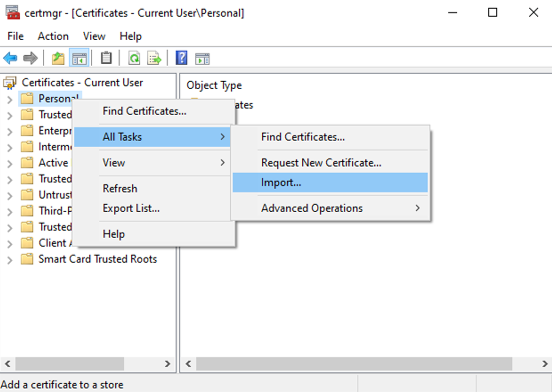
- First, enable Manage User Certificates. Select Certificates - current user -> Personal -> All tasks -> Import....
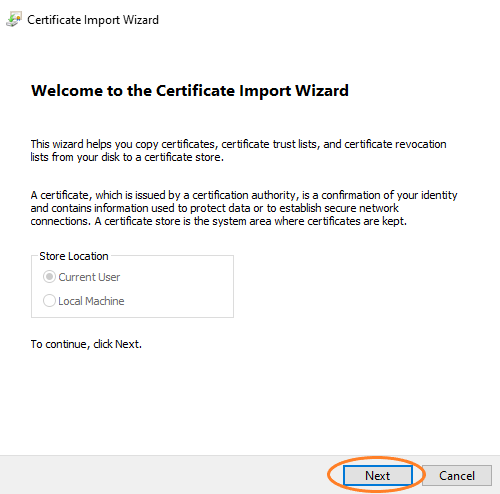
- The Certificate Import Wizard window will open.
- Then import the file with your personal certificate.
- In the next step, enter the password for the certificate. You can also select the import option. After selecting, click Next.
- Select the folder where the certificate is to be placed.
- View of the certificate settings.
¶ Linux
To attach a personal certificate to the Linux system, follow the instructions below.
- Create a directory (if it does not already exist)
mkdir /usr/local/share/ca-certificates
- Copy the certificate to the created directory
sudo cp <full path to certificate file> /usr/local/share/ca-certificates
- Update certificates
sudo update-ca-certificates